
New feature in PIM - fire custom extensions on role activation
Add custom business logic to PIM role activation requests with custom extensions
 Written by Stian Strysse Bjørge
I recently wrote about the things I would fix in Microsoft Entra Privileged Identity Management if Microsoft made me Product Manager for a day. While researching that post, one preview feature caught my attention: custom extensions for role activation - which is something I helped test in private preview earlier.
The idea is simple. A user requests activation of a role and writes a justification. PIM sends the activation request to a REST API that you control. Your API evaluates the request and tells PIM to continue, automatically approve it, or deny it.
That REST API can apply whatever business logic your organization needs. It can validate a ticket, check an HR system, look at the requested duration, apply different rules for different roles, or let an AI model reason over the justification written by the user.
And the really interesting part is that the current PIM portal can require an extension both before and after the normal human approval step. So of course I had to build one together with my favourite AI companion to see how it actually works.
In this blog post we will look at:
- What PIM custom extensions actually are
- Pre-approval and post-approval calls
- What the API receives and must return
- How to protect the API with Microsoft Entra ID
- How to create the custom extensions with Microsoft Graph
- How to attach an extension to a PIM role
- Why I added an admin console
- What I learned while testing the preview
Note: I am not going to spend this blog post walking through every line of API code. Your favorite AI coding tool can likely build it for you, as long as you give it the correct requirements and verify the output. The interesting part is to show how PIM, Entra ID and the API fit together.
What is a PIM custom extension?
A PIM custom extension is an HTTPS endpoint that PIM calls during activation of an eligible assignment.
It is available for:
- PIM for Groups
- PIM for Microsoft Entra roles
- PIM for Azure resources
The feature is currently in preview and requires Microsoft Entra ID Governance or an Entra Suite license. Microsoft has documented the feature here: Configure custom extensions for PIM role activation.
PIM sends the activation request directly to your API using HTTP POST. There is no Logic App, connector or shared secret sitting between PIM and the API. PIM gets an access token from Entra ID for your API and puts it in the Authorization header.
For the documented pre-approval flow, your API then returns one of three outcomes:
Approvedlets the request continue through the normal PIM workflowAutoApprovedlets the activation continue without normal human approvalDeniedblocks the activation
That makes this a real policy decision point. It is not just another notification webhook, although you can use it for that too.
Before approval or after approval
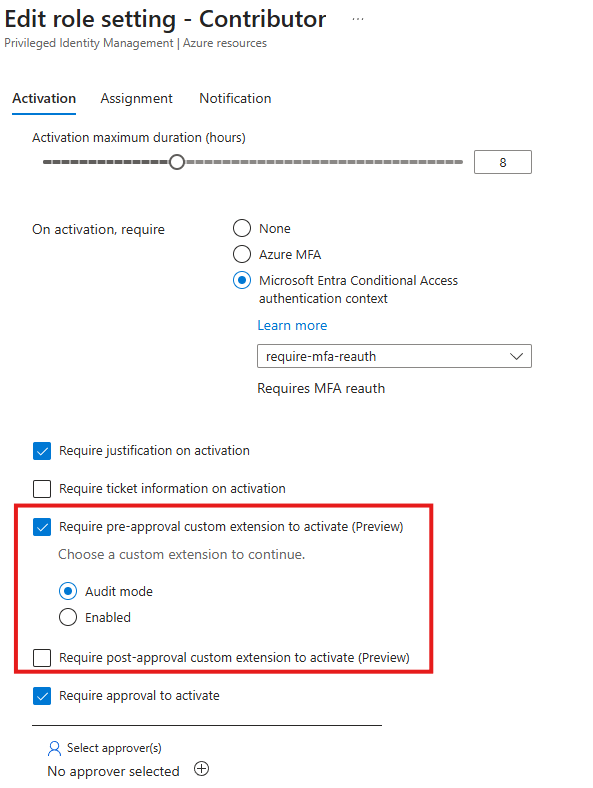
When editing the activation settings for a role, the current PIM portal can require a custom extension at two different stages.
Pre-approval
The pre-approval extension runs before the normal PIM human approval step, if you have that configured. This is useful when the custom API should reject requests that should never reach an approver. It can also return AutoApproved, which skips the normal approval step completely.
In my dev tenant the portal provided two modes for the pre-approval extension:
Auditmode calls the extension but does not enforce its decisionEnabledmode calls the extension and enforces its decision
Audit mode is exactly what I want from a preview feature. It lets you see what the extension would have decided before giving it the power to block or automatically approve anything.
Post-approval
Note: Post-approval isn’t covered in the Microsoft Learn docs as of 2026-09-07, but it’s available as configuration properties in Graph and the PIM Portal so I guess it’s work in progress to just finalize the documentation.
The second checkbox in the screenshot above is called Require post-approval custom extension to activate. The wording and its position in the activation settings show the intended order. Normal PIM human approval happens first, then the custom extension is called before activation completes. Post-approval does not mean that access has already been granted. It means that a human has approved the request and the custom logic gets one final check before PIM completes activation.
This could be useful if the API needs to check that a ticket is still open, verify that an emergency condition is still active, or run a final compliance check after the human decision.
The same API application can serve both stages. I would still create separate extension registrations with different endpoint paths. This makes the intended stage visible in logs without depending on undocumented payload fields.
For example:
https://pim-api.learningbydoing.cloud/api/v1/pim/preapproval
https://pim-api.learningbydoing.cloud/api/v1/pim/postapproval
What could we use this for?
Microsoft lists ticket validation, HR checks, compliance workflows and dynamic approval logic as examples. This is where it gets interesting, because there are many other possibilities.
An API could check whether:
- The justification says what the user is going to do
- The requested role makes sense for that task
- The requested duration is reasonable
- A valid change or incident ticket exists
- The ticket belongs to the person or team requesting access
- The user is currently on call
- The device or user risk is acceptable
- The target resource is inside an approved maintenance window
- A highly privileged role always requires human approval
My test API looks at the reason entered by the user. It applies some normal deterministic rules first and is prepared to send the reason and relevant request context to an AI model. When that integration is enabled, the model returns a structured assessment with a verdict, confidence, risk and a useful explanation.
Something like need access tells us almost nothing and should not be enough to activate a powerful role. A reason explaining what needs to be changed, why it needs to happen now, which system is involved and which ticket tracks the work is much more useful.
AI is not magic here. The model is one policy component, not an all knowing security administrator. Start in audit mode, measure the results, keep critical roles away from automatic approval, and make sure failures never silently turn into approvals.
The request from PIM
The request body differs between the three PIM providers.
For Groups, PIM sends a privilegedAccessGroupAssignmentScheduleRequest.
For Microsoft Entra roles, PIM sends a unifiedRoleAssignmentScheduleRequest.
For Azure resources, PIM sends an Azure role assignment schedule request with the values inside a properties object.
The object names are different, but fortunately the useful information is mostly the same:
- Request ID
- Principal ID
- Role or group ID
- Scope
- Justification
- Requested start time and duration
- Ticket number and ticket system, when configured
I normalize all three payloads into one internal request model before applying policy. That keeps the evaluation logic independent of the PIM provider.
Warning: Do not assume that the justification is safe input. A user can write anything in that field, including instructions intended to manipulate an AI model. If you use AI, treat the text as untrusted data, clearly separate it from system instructions, use structured model output, and apply normal policy rules before AI reasoning.
The response to PIM
The response is refreshingly small:
{
  "evaluationId": "7bb822c8-550c-42c7-98b3-1a4d095f95ee",
  "evaluationOutcome": "Approved",
  "reason": [
    "The request explains the planned change and references a valid incident."
  ]
}
evaluationId should identify the evaluation for troubleshooting and audit purposes. I recommend making it deterministic for the PIM request and stage, so a retry does not create conflicting decisions.
evaluationOutcome must be Approved, AutoApproved or Denied.
reason is an array of messages explaining the decision. This is especially important for denials because the user needs to know what was missing and how to write a better request.
Microsoft currently uses 10000 milliseconds and three retries in its Graph example. The documentation describes these fields as the time PIM waits and the number of retry attempts, but does not publish their supported ranges. Do not assume that the example values are hard limits. Use values accepted by your tenant and keep the API timeout shorter than the PIM timeout so there is still time to return a controlled response if an external service or AI model is slow.
Protect the API with Microsoft Entra ID
PIM custom extensions supports proper Entra authentication. Create a single tenant app registration for the API. In this example, the endpoint is:
https://pim-api.learningbydoing.cloud/api/v1/pim/preapproval
The host name in the Application ID URI must match the host name of the endpoint, and the URI must end with the Application client ID. Follow Microsoft’s documentation for doing this properly.
If the client ID is 11111111-2222-3333-4444-555555555555, the Application ID URI becomes:
api://pim-api.learningbydoing.cloud/11111111-2222-3333-4444-555555555555
No client secret or certificate is required for PIM to call the API. PIM requests a token for the Application ID URI itself.
Validate more than just the token signature
Validating that a token was signed by Entra ID is not enough. The API should validate all of the following:
- The signature is valid and uses current Entra signing keys
- The token has not expired
- The issuer belongs to your tenant
- The audience is your Application ID URI
- The calling application is Microsoft Entra PIM
For a version 2 access token, the calling application is found in the azp claim. For a version 1 token, it is found in appid.
The Microsoft Entra PIM service application ID in the token I received was:
1c67c054-65c8-4f7f-92a1-eb7ba6e48627
The API should reject the request if that value does not match. Otherwise, another application that manages to request a token for your API could potentially submit its own fake activation payload.
Here is a nice preview documentation trap. The English Microsoft Learn article currently shows what looks like an example client ID in the caller validation sentence. Several localized versions show the PIM service ID above, and that value also matched the azp claim in my live request. Confirm the caller claim with a controlled test in your own tenant before hard coding it.
I would also recommend:
- Accepting POST only on the evaluation endpoints
- Limiting request size and JSON depth
- Keeping the service single tenant
- Using HTTPS with a valid certificate
- Avoiding raw request and justification logging
- Giving the API runtime identity only the permissions it actually needs
- Keeping any administrator interface behind a separate Entra role, locked behind GSA Private Access
- Using managed identities instead of API keys when calling Azure services
The activation reason can contain operational details, incident numbers and resource information. I choose to store the decision evidence, but deliberately did not store the raw justification.
Check the app registration and Enterprise application
The Application ID URI is stored as identifierUris on the app registration. PIM also checks that the same value exists in servicePrincipalNames on the Enterprise application.
You can verify both with Microsoft Graph PowerShell:
Connect-MgGraph -Scopes 'Application.Read.All'

$clientId = '11111111-2222-3333-4444-555555555555'

$appUri = "https://graph.microsoft.com/v1.0/applications?`$filter=appId eq '$clientId'&`$select=id,appId,identifierUris"
$spUri = "https://graph.microsoft.com/v1.0/servicePrincipals?`$filter=appId eq '$clientId'&`$select=id,appId,servicePrincipalNames"

$application = (Invoke-MgGraphRequest -Method GET -Uri $appUri).value[0]
$servicePrincipal = (Invoke-MgGraphRequest -Method GET -Uri $spUri).value[0]

$application | Select-Object appId, identifierUris
$servicePrincipal | Select-Object appId, servicePrincipalNames
Both objects should contain:
api://pim-api.learningbydoing.cloud/11111111-2222-3333-4444-555555555555
Create the custom extensions with Microsoft Graph
Custom extensions are currently managed through the Microsoft Graph beta endpoint.
Connect-MgGraph `
  -Scopes 'PrivilegedAccess-CustomExt.ReadWrite.All'
The following function creates a custom extension. The timeout and retry values match Microsoft’s current example:
function New-PimCustomExtension {
    param(
        [Parameter(Mandatory)]
        [string] $DisplayName,

        [Parameter(Mandatory)]
        [ValidateSet('entraGroups', 'entraRoles', 'azureResources')]
        [string] $ResourceType,

        [Parameter(Mandatory)]
        [string] $TargetUrl,

        [Parameter(Mandatory)]
        [string] $ApplicationIdUri
    )

    $body = @{
        '@odata.type' = '#microsoft.graph.roleManagementCustomCalloutExtension'
        id = [Guid]::NewGuid().ToString()
        displayName = $DisplayName
        description = 'Evaluates PIM role activation requests'
        endpointConfiguration = @{
            '@odata.type' = '#microsoft.graph.httpRequestEndpoint'
            targetUrl = $TargetUrl
        }
        clientConfiguration = @{
            '@odata.type' = '#microsoft.graph.customExtensionClientConfiguration'
            timeoutInMilliseconds = 10000
            maximumRetries = 3
        }
        authenticationConfiguration = @{
            '@odata.type' = '#microsoft.graph.azureAdTokenAuthentication'
            resourceId = $ApplicationIdUri
        }
        resourceType = $ResourceType
        customAttributes = @()
    }

    Invoke-MgGraphRequest `
      -Method POST `
      -Uri 'https://graph.microsoft.com/beta/identityGovernance/privilegedAccess/customExtensions' `
      -Body ($body | ConvertTo-Json -Depth 10) `
      -ContentType 'application/json'
}
The three resource type values that worked in my tenant are:
entraGroups
entraRoles
azureResources
Create one extension for each PIM provider you plan to use:
$applicationIdUri = 'api://pim-api.learningbydoing.cloud/11111111-2222-3333-4444-555555555555'
$preApprovalUrl = 'https://pim-api.learningbydoing.cloud/api/v1/pim/preapproval'

New-PimCustomExtension `
  -DisplayName 'Reason validation for PIM Groups' `
  -ResourceType entraGroups `
  -TargetUrl $preApprovalUrl `
  -ApplicationIdUri $applicationIdUri

New-PimCustomExtension `
  -DisplayName 'Reason validation for Entra roles' `
  -ResourceType entraRoles `
  -TargetUrl $preApprovalUrl `
  -ApplicationIdUri $applicationIdUri

New-PimCustomExtension `
  -DisplayName 'Reason validation for Azure roles' `
  -ResourceType azureResources `
  -TargetUrl $preApprovalUrl `
  -ApplicationIdUri $applicationIdUri
If you want separate behavior after human approval, create another extension for each required provider and point it to the post-approval endpoint instead. That stage is not yet covered by the current Microsoft Learn article, so test the actual call and response in your tenant before enabling it for an important role.
You can list the registered extensions with:
$uri = 'https://graph.microsoft.com/beta/identityGovernance/privilegedAccess/customExtensions'

(Invoke-MgGraphRequest -Method GET -Uri $uri).value |
    Select-Object id, displayName, resourceType,
        @{ Name = 'TargetUrl'; Expression = { $_.endpointConfiguration.targetUrl } },
        @{ Name = 'ResourceId'; Expression = { $_.authenticationConfiguration.resourceId } }
Create the extension in the portal
You can use the Entra admin center instead of Graph.
- Open Identity governance
- Open Privileged Identity Management
- Select Custom Extensions
- Select Create a custom extension
- Choose Groups, Microsoft Entra roles or Azure resources
- Enter the HTTPS endpoint, timeout and retry count
- Select the app registration used to protect the API
- Review and create
The resource type matters. An extension created for Groups will not appear when you edit an Azure resource role.
Attach the extension to a role
Creating the extension does not make PIM call it. It must be attached to the activation settings of each role where it should run.
For an Azure resource role:
- Open Identity governance and Privileged Identity Management
- Select Azure resources
- Open the subscription, Resource Group or resource
- Open Settings and select the role
- Select Edit and stay on the Activation tab
- Enable Require pre-approval custom extension to activate
- Select the custom extension
- Choose Audit mode or Enabled
- Optionally enable Require post-approval custom extension to activate and select the extension for that stage
- Save the role settings
The process is almost identical for Microsoft Entra roles and PIM for Groups.
Start safely
Start with one low risk test role. Keep the normal human approval requirement enabled. Put the pre-approval extension in Audit mode, or implement a Shadow mode inside the API that always returns Approved while recording the recommendation it would have returned.
I used an internal Shadow mode because it gives me the same behavior across PIM providers and stages. The API stores both values:
Recommended: Denied
Returned: Approved
This makes it possible to collect real activation data without letting a new policy engine affect access on day one.
An admin console makes this much easier
The console is not part of the Microsoft feature and the API works without it. Still, running this thing blind felt like a bad idea, so I added a small operations console. It shows the current enforcement mode, policy version, API version, storage status, AI model status and post-approval mode. It also shows recent evaluations with the stage, target, recommended outcome, returned outcome, confidence and duration.
The difference between the recommended and returned outcome is especially useful in Shadow mode. I can see that the API wanted to deny a request while PIM still received Approved. This gives me real data before I let the new policy affect access.
The console also lets me create policies for an exact role or group. A policy can require a longer justification, limit activation duration, require a ticket and decide whether that exact target is even eligible for automatic approval. Automatic approval remains disabled unless I explicitly enable it for a target.
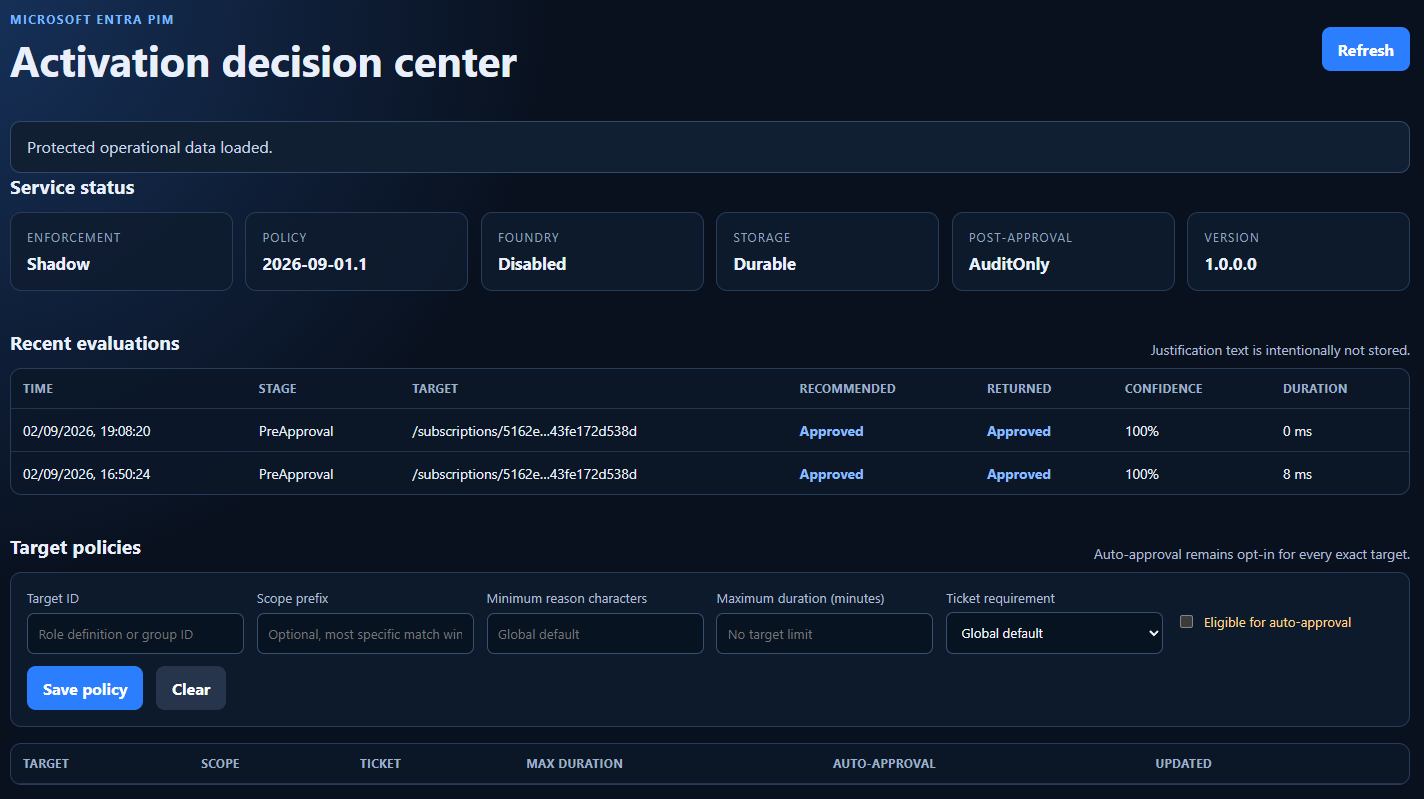
The console is protected by Entra ID as well. And the page deliberately does not show or store the raw activation reason. It stores enough evidence to understand the outcome without creating another database full of operational details and incident information.
Things I learned the hard way
This is a preview feature, and yes, it shows in a few places.
The create example needed an ID
The Microsoft Graph example did not include an id property when I tested it. My first POST returned:
Id property needs to have a GUID value.
Adding this to the request fixed it:
id = [Guid]::NewGuid().ToString()
The Application ID URI existed in only one place
The app registration had the correct identifierUris value, but it had not been synchronized to servicePrincipalNames on the Enterprise application.
Creating the custom extension then failed with:
The resourceId is not present in the service principal names for application id.
Checking both objects and reconciling the missing value fixed the problem.
The portal knows more than the documentation
The current Microsoft documentation explains the pre-approval extension, request payload and response contract quite well. The PIM portal also exposes a native post-approval custom extension setting, even though this is not explained in the same documentation yet.
The portal is also where you can see the difference between Audit mode and Enabled for the pre-approval call.
Preview means preview. Expect both the API and portal experience to change, and test this again before using it for important roles.
Do we need an AI agent for this?
Maybe not.
For my test use case, this is one stateless classification request with a strict response schema and a hard timeout. A direct call to a hosted model is simpler, faster and easier to audit. I do not need to give an agent tools, memory and its own workflow just to decide whether a paragraph is a good enough justification.
I would use normal code for rules that can be expressed normally, then use the model for understanding the written justification. The code remains responsible for the final outcome and enforcement mode.
I think the model should not decide whether it feels like calling another system. If ticket validation is required, the API should call that system explicitly and include the result as trusted context for the model or policy engine.
Final thoughts
This is one interesting improvement, great to see Microsoft releasing new PIM features.
PIM is no longer limited to the same static activation rules for every organization. We can insert our own business logic directly into the documented pre-approval flow. That power also makes it easy to build something dangerous. An API outage can affect role activation. Weak token validation can expose a decision endpoint. Bad automatic approval logic can bypass humans. Logging every justification can create a new pile of sensitive data.
Build it small. Protect it properly. Start in audit mode. Measure what it would do. Then decide how much authority it should actually have.